How to Check an AI Portrait’s Resolution Before a Small Print
PhotosLux ·
To assess an AI portrait before a small print, check the downloaded file’s actual pixel dimensions, then divide each dimension by your intended pixels per inch (PPI). The calculation estimates print size; it cannot guarantee sharpness, so also inspect the image and check the printer’s requirements.
1. Check the downloaded file’s pixel dimensions
Use the finished image file, not a preview, screenshot, or copy saved from a chat. If the photo is available in PhotosLux’s My Photos, use its Download control; access depends on the photo’s state.
Open the downloaded file’s information panel or an image editor and find its width and height in pixels—for example, 1200 × 1600 px. File size in megabytes does not tell you the image dimensions, and aspect ratio alone gives only the shape, not the amount of detail. Keep these pixel dimensions handy for the next step.
2. Calculate a possible print size with PPI
Use this arithmetic for each side: print width in inches = pixel width ÷ intended PPI; print height in inches = pixel height ÷ intended PPI. To convert inches to centimeters, multiply by 2.54.
For illustration only, a 1200 × 1600-pixel image at 300 PPI works out to 4 × 5.33 inches, or about 10.16 × 13.55 cm. At 200 PPI, it works out to 6 × 8 inches, or 15.24 × 20.32 cm—with fewer pixels per inch across the larger print. These are hypothetical calculations, not PhotosLux export dimensions or promises of sharpness. 300 PPI is a common starting point for close-viewed photo printing, but follow your printer’s requested value if it specifies another.
3. Don’t mistake a PPI label for extra detail
A file may show a resolution tag such as 72, 96, or 300 PPI. That label alone does not reveal more image detail: changing the print-resolution metadata without resampling leaves the pixel count unchanged. PPI describes image pixels per inch on the print; printer DPI refers to the ink dots a printer lays down.
Resampling can change pixel dimensions, but enlarging an image interpolates pixels rather than verifying or recovering original detail. AI enhancement may also invent textures. PhotosLux does not provide a PPI setting or guarantee a pixel export size, so treat the downloaded file’s actual pixels as the basis for your estimate.
4. Inspect detail at the size you plan to print
In the downloaded file, inspect edges, eyes, hair, and fabric at 100% zoom. Look for softness, jagged edges, or details that already appear muddled; a larger print will not make those features clearer. If your editor offers a calibrated print-size preview, check the image at the intended physical size too.
A screen check is useful but not conclusive. Screen size, brightness, and color differ from paper, so a portrait that looks good on a phone does not prove how a print will look. This is a check of likely print quality, not an authenticity test.
5. Decide whether to make a small proof
Before ordering, note the downloaded pixel dimensions, intended print width and height, and the printer’s requested PPI or file requirements. Ask about paper and trimming if those could affect the final usable size.
If you are uncertain, make a small proof before committing to a larger print. If the pixel count or visible detail seems inadequate, choose a smaller size or test a proof rather than stretching the image and assuming it will hold up.
Illustrative example
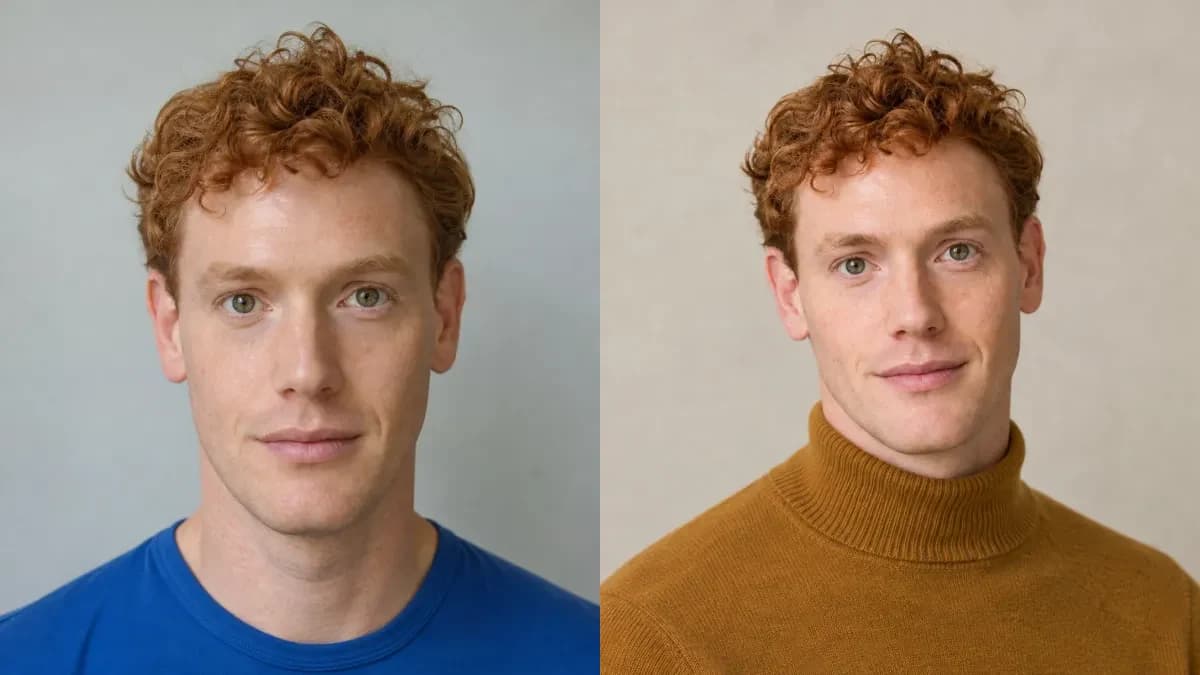
Illustrative digital portrait example
One fictional adult man with short curly ginger hair, hazel-green eyes, and lightly freckled fair skin appears in a synthetic cobalt-blue T-shirt reference. The new digital professional portrait places him in a plain ochre high-neck cotton sweater against a light-stone studio backdrop. Natural treatment, soft even daylight, relaxed shoulders, a gentle smile, and head-and-upper-torso framing were selected; hands remain outside the frame. No text, logos, jewelry, or emblems appear. Both images are synthetic; no physical print or fixed pixel dimensions are shown.

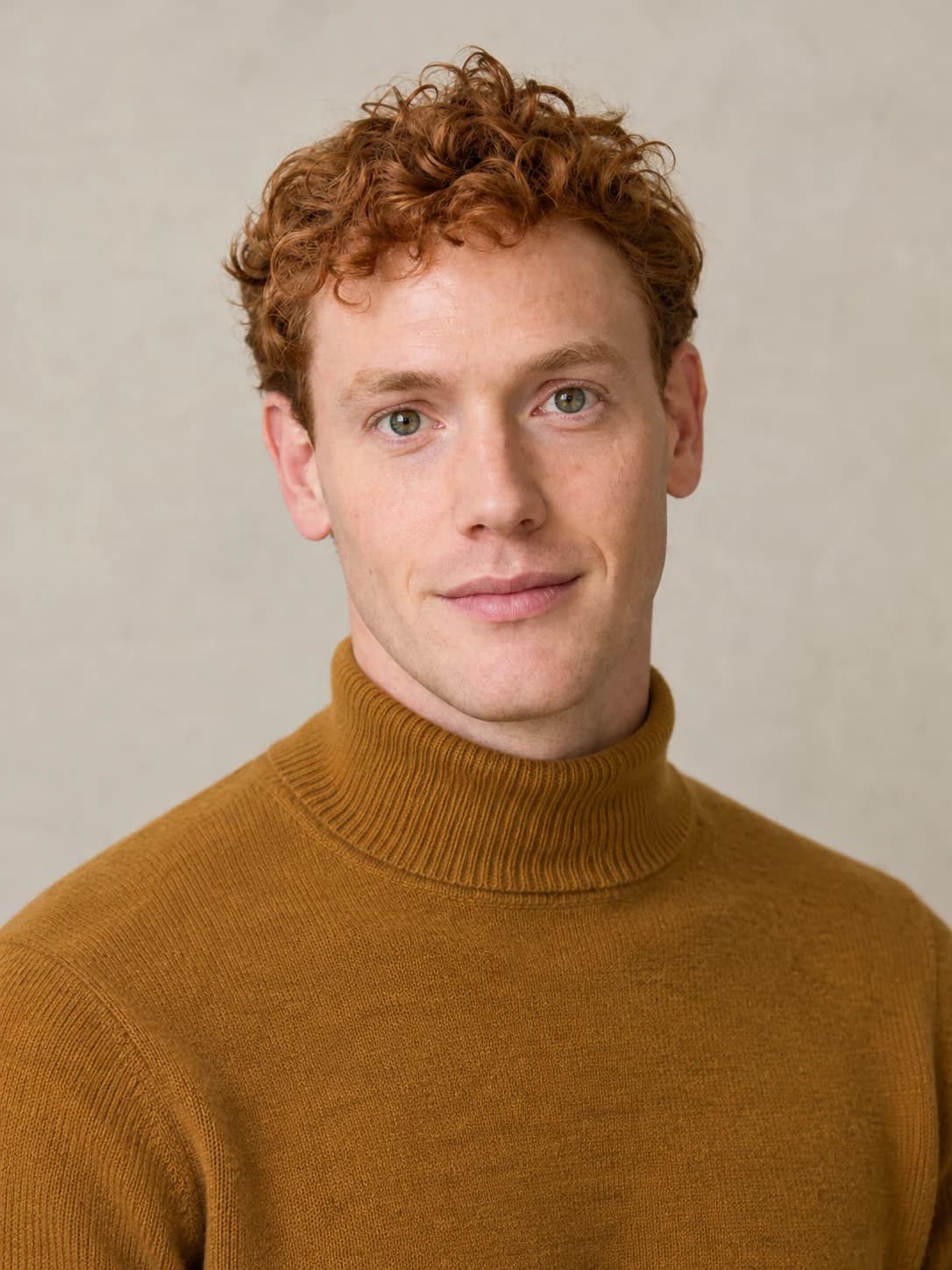
Create a natural professional studio portrait with a plain ochre high-neck cotton sweater and a plain light-stone backdrop. Use soft, even daylight, a head-and-upper-torso composition, relaxed shoulders, and a gentle natural smile with visible skin texture. Keep hands outside the frame. Include no text, lettering, logos, emblems, or jewelry. 3:4 portrait format.
Both images are AI generated and show a fictional adult. This is an illustrative example, not a customer result; outcomes vary.
FAQ
Does changing a photo to 300 PPI improve detail?
No. Changing only the PPI metadata does not add pixels or image detail. Resampling changes pixel dimensions, but does not verify or recover lost detail.
How do pixels translate to centimeters or inches?
Divide the pixel width and height by the intended PPI to estimate inches, then multiply each measurement by 2.54 to convert to centimeters.
Can I judge a paper print from a phone screen alone?
No. A screen can help you inspect details, but its size, brightness, and color cannot prove how the image will look on paper.