How to Choose a Reference Photo for a Natural AI Professional Photoshoot
PhotosLux ·
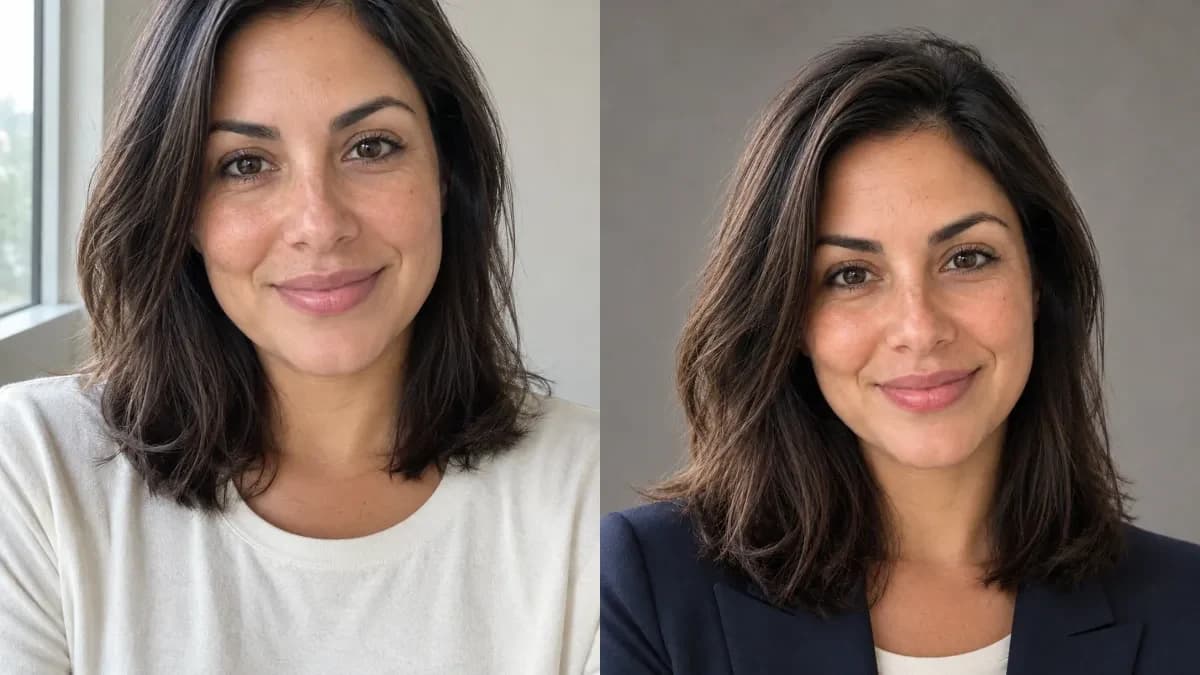
For the most recognizable, natural-looking professional portrait, upload one clear, recent photo of just yourself, with your face unobstructed and evenly lit. PhotosLux uses that image as an identity reference for a new creative scene, but the result can differ, so review it before sharing.
1. Choose clear face and natural light
Pick a photo where your face is in focus, large enough to see clearly, and lit evenly. Soft daylight near a window often works well: it shows your features without harsh shadows or bright spots. Face the camera or turn only slightly, and keep your expression relaxed.
A simple background helps, but it does not need to be a studio backdrop. The most useful reference is one where someone who knows you can readily recognize your face. A very distant group photo or a picture with your face in shadow gives the system less clear visual information.
2. Use one person and keep features unobstructed
Professional photoshoot takes one reference photo of one person. Choose an image without other people, and make sure your eyes, nose, mouth, and face shape are visible. Avoid sunglasses, masks, hands covering your face, and hair that hides important features.
Couple and wedding creations use two separate photos, one for each person. Family portraits use two to five separate photos. For this guide's professional portrait, do not combine several people in one reference or upload a photo of someone else.
3. Avoid filters, screenshots, and heavy compression
Use the original photo file when possible. Filters can alter skin tone, facial details, or proportions; screenshots and repeatedly compressed images can soften detail or introduce artifacts. Skip beauty effects, strong color treatments, and images that are blurry, pixelated, or overexposed.
PhotosLux accepts JPEG, PNG, and WebP files up to 20 MB each. A straightforward, unedited image is a practical starting point. More detail does not guarantee an exact likeness: reference quality affects results, and generated faces can still differ.
4. Match the choices to your purpose
Think about where you plan to use the portrait. Choose an outfit and setting that fit that context, then select a natural, editorial, or cinematic treatment. For a restrained professional look, a simple jacket, neutral shirt, and understated studio setting can work; your reference itself does not have to show that outfit.
You choose the outfit, setting, extra preferences, and image format: 3:4, 4:3, or 1:1. A 3:4 portrait suits many vertical profile layouts, while square and landscape formats may fit other placements. Check the destination's requirements before creating. A generated professional portrait is a creative image, not proof of employment or credentials and not an identity-document photo.
5. Review the face, hands, and edges
Inspect the finished image at full size before downloading or sharing. Check whether the face looks like you, the expression feels natural, and the hairline, ears, shoulders, clothing, and background edges look coherent. Hands can be especially worth checking if they appear in the frame.
If something looks wrong, try a clearer reference or adjust your outfit, setting, or extra preferences, then review the next result too. Share thoughtfully: consider whether the setting and styling could mislead viewers about your role or qualifications, and label or explain the image when context matters.
Illustrative example
Illustrative studio example
Both images below are AI generated: the reference is a synthetic portrait of a fictional adult, and the result is a new PhotosLux professional studio image, not a customer before-and-after or an endorsement. The example uses one person in a professional photoshoot with a natural treatment, a navy blazer over a plain cream shirt, and a warm gray studio background. The preferences specify relaxed shoulders and a gentle natural smile, with a 3:4 portrait format. This shows how concrete choices can guide a scene; it does not promise an identical face or a particular result. Review each generated image, since outcomes vary.
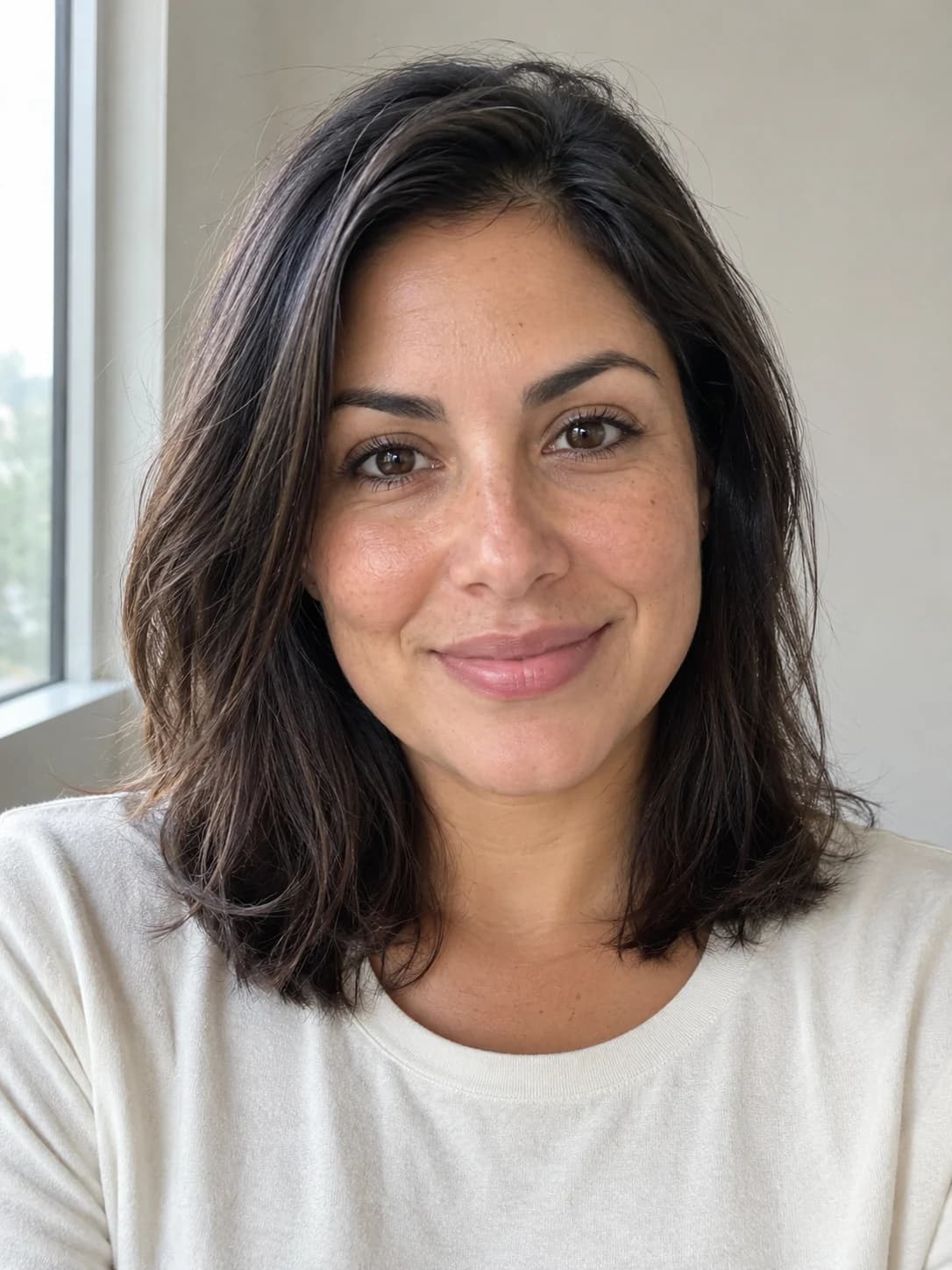
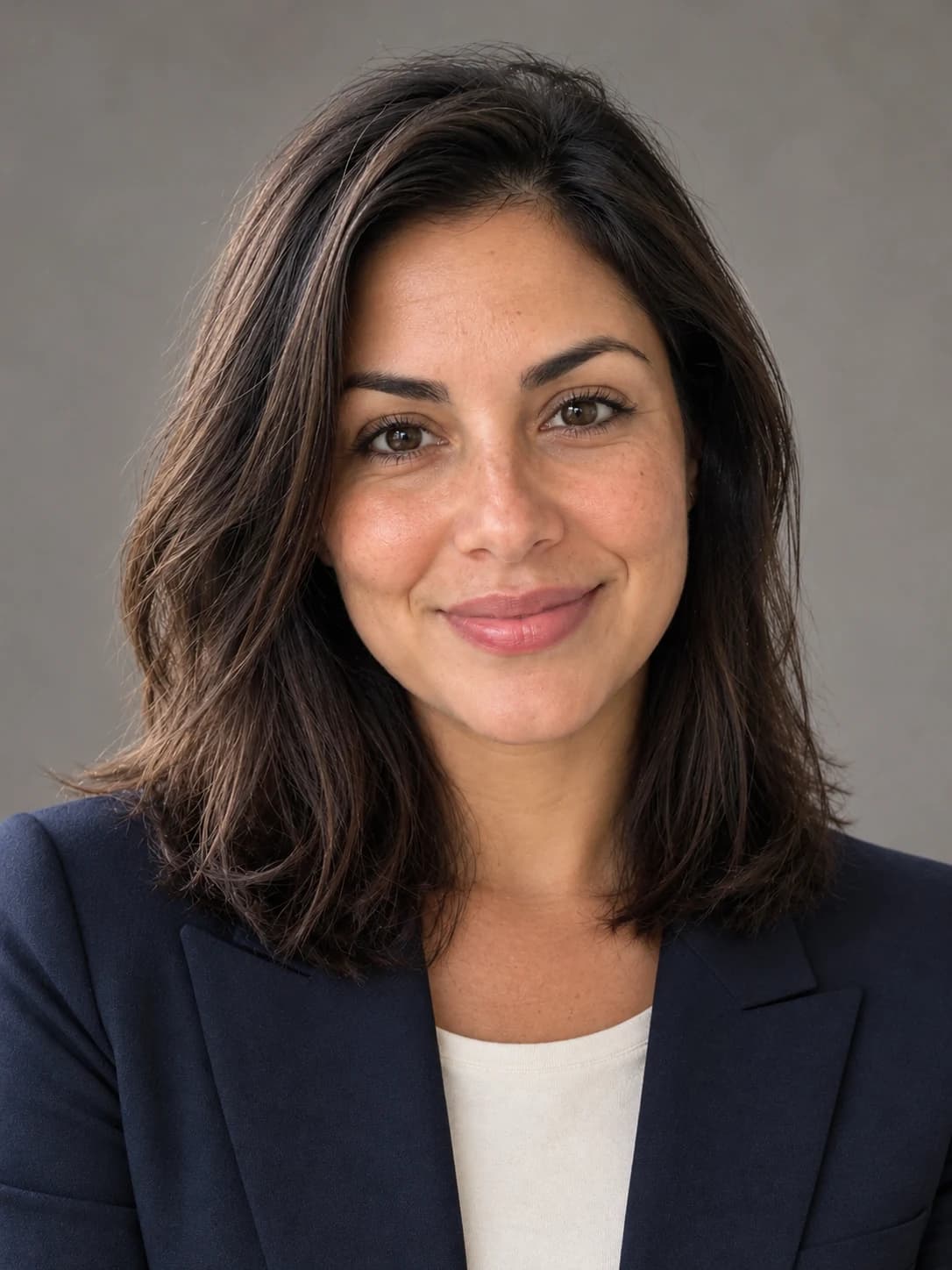
Professional photoshoot, natural treatment. A navy blazer over a plain cream shirt, warm gray studio background, relaxed shoulders, gentle natural smile. 3:4 portrait.
Both images are AI generated and show a fictional adult. This is an illustrative example, not a customer result; outcomes vary.
FAQ
What kind of reference photo should I upload?
Use one clear, well-lit photo of yourself with your face in focus and unobstructed. A recent, unfiltered original is a useful starting point.
Can I use a group photo for a professional portrait?
No. Professional photoshoot takes one photo of one person. Crop or choose a solo image instead. Couple and wedding creations require two separate photos, and family portraits require two to five separate photos.
Will the generated portrait look exactly like my reference?
Not necessarily. The reference guides a new creative image, but results may differ. Review the face, hands, and image edges before sharing.