How to Use Negative Space in a Portrait Without Losing the Person
PhotosLux ·
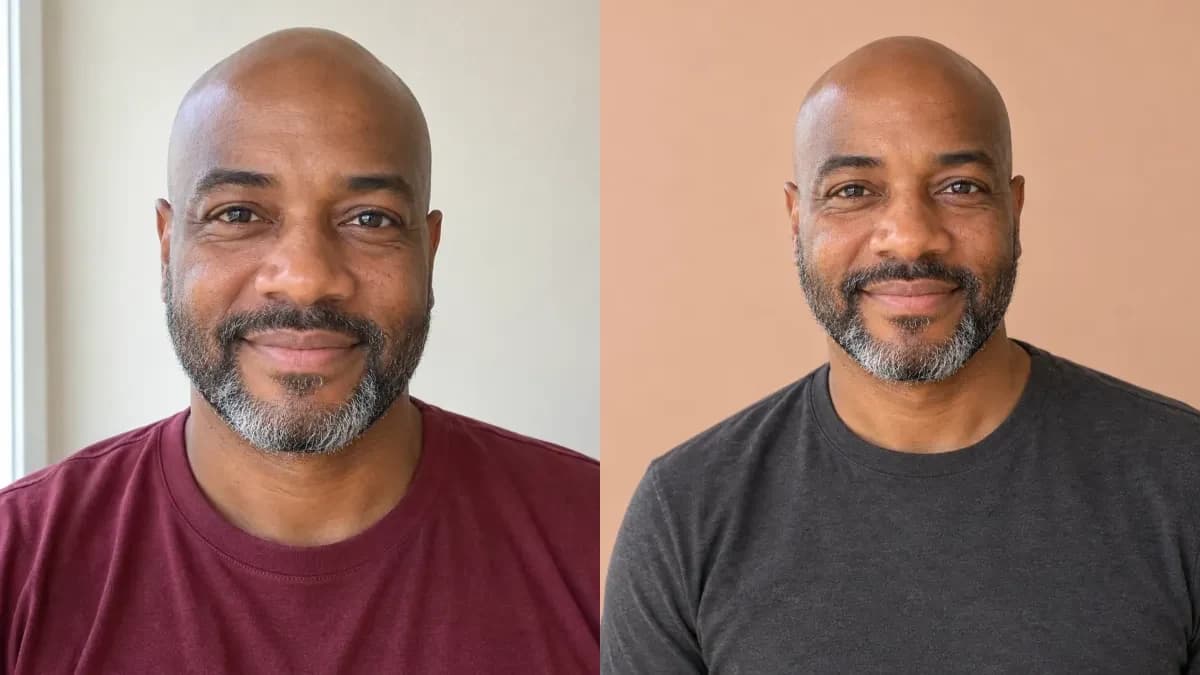
Negative space is the relatively quiet area around a portrait subject, and it can make a composition feel calm without making the person disappear. Keep the face and shoulders readable, then reserve the quieter side for breathing room or a later layout purpose.
1. Understand what negative space does
Negative space is the area around the main subject that carries little visual activity. It does not have to be white, completely empty, a border, or an AI canvas-expansion feature. A muted wall, open sky, or softly toned background can work when it stays visually quiet.
Compare a portrait crowded with furniture, plants, signs, and decorative objects with one showing a person beside an uninterrupted wall. In the second version, the open area gives the eye somewhere to rest and makes the subject feel more intentional, even though the wall is not literally blank white.
2. Choose the quiet side and its purpose
Decide why you want the open area before moving the person. It might provide breathing room around the portrait, or it might remain available for a headline added later in another layout editor. Choose viewer-left or viewer-right according to the intended placement; there is no universal language-side rule and no required percentage.
Negative space can make the person appear smaller, so protect the visual information that matters. Keep the face and shoulders clear, avoid pushing the subject against the edge, and make sure the quiet area is large enough to remain calm without overwhelming the portrait.
3. Write a three-part composition brief
Use this reusable structure: SUBJECT—one adult on viewer-right, face and shoulders fully visible. SPACE—a broad uninterrupted muted-apricot wall on viewer-left, with no props or lettering. PURPOSE—a quiet area to leave empty or use later in another layout editor.
A vague request such as “make a calm portrait with space” leaves too much undecided. An improved request is: “Place one adult on the viewer-right with the entire head and both shoulders visible. Leave a broad uninterrupted muted-apricot wall on the viewer-left, with no props, signs, or lettering. Keep that area quiet for breathing room or possible later layout use.”
4. Apply the brief in a new PhotosLux scene
For this example, start a new professional photoshoot with one identity reference for one person. Choose a plain charcoal long-sleeve crew-neck shirt, a quiet studio with one uninterrupted muted-apricot wall, the natural treatment, and the 4:3 format. Put the person-side and quiet-area instructions in extra preferences.
The wording guides a new composition; it does not position the person with exact coordinates. Keep the requested wall free of lettering, and add any headline later in a separate editor. Review the result before using it.
5. Judge the finished composition
Check whether the face and both shoulders are easy to read, the subject is not clipped or pushed off the edge, and the quiet area remains free of props and busy detail. Look for strange tangencies, such as an edge appearing to grow from the head or shoulder, because these can make an otherwise simple layout feel accidental.
If you plan to add a headline in a separate editor, test the actual placement without covering the person or introducing clutter. When a result misses the brief, simplify the request for a new scene and check the next result again.
Illustrative example
Illustrative example: viewer-right subject, viewer-left quiet wall
This fictional example uses a synthetic reference portrait of a 46-year-old adult man with a shaved head, short salt-and-pepper beard, dark-brown skin, and a maroon T-shirt. A new natural 4:3 professional studio portrait places him on the viewer-right in a plain charcoal long-sleeve shirt, with his head and upper torso visible, a gentle smile, soft even daylight, and hands outside the frame. The viewer-left remains an uninterrupted muted-apricot wall without props or text. Both images are AI generated, not a customer before-and-after, and positioning can vary. The shoulder nearest the image’s right edge meets the frame. Review the framing before using the portrait.
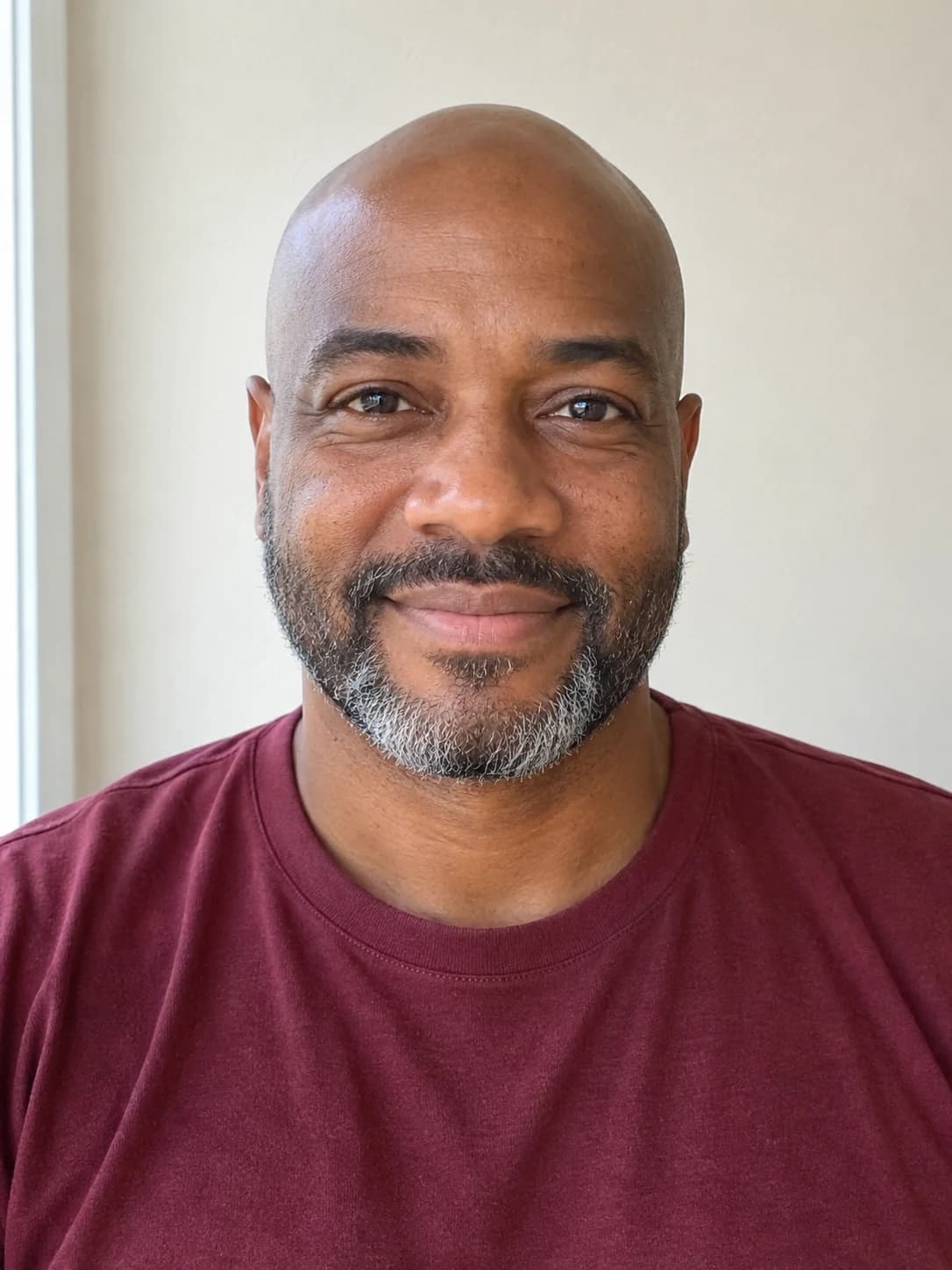
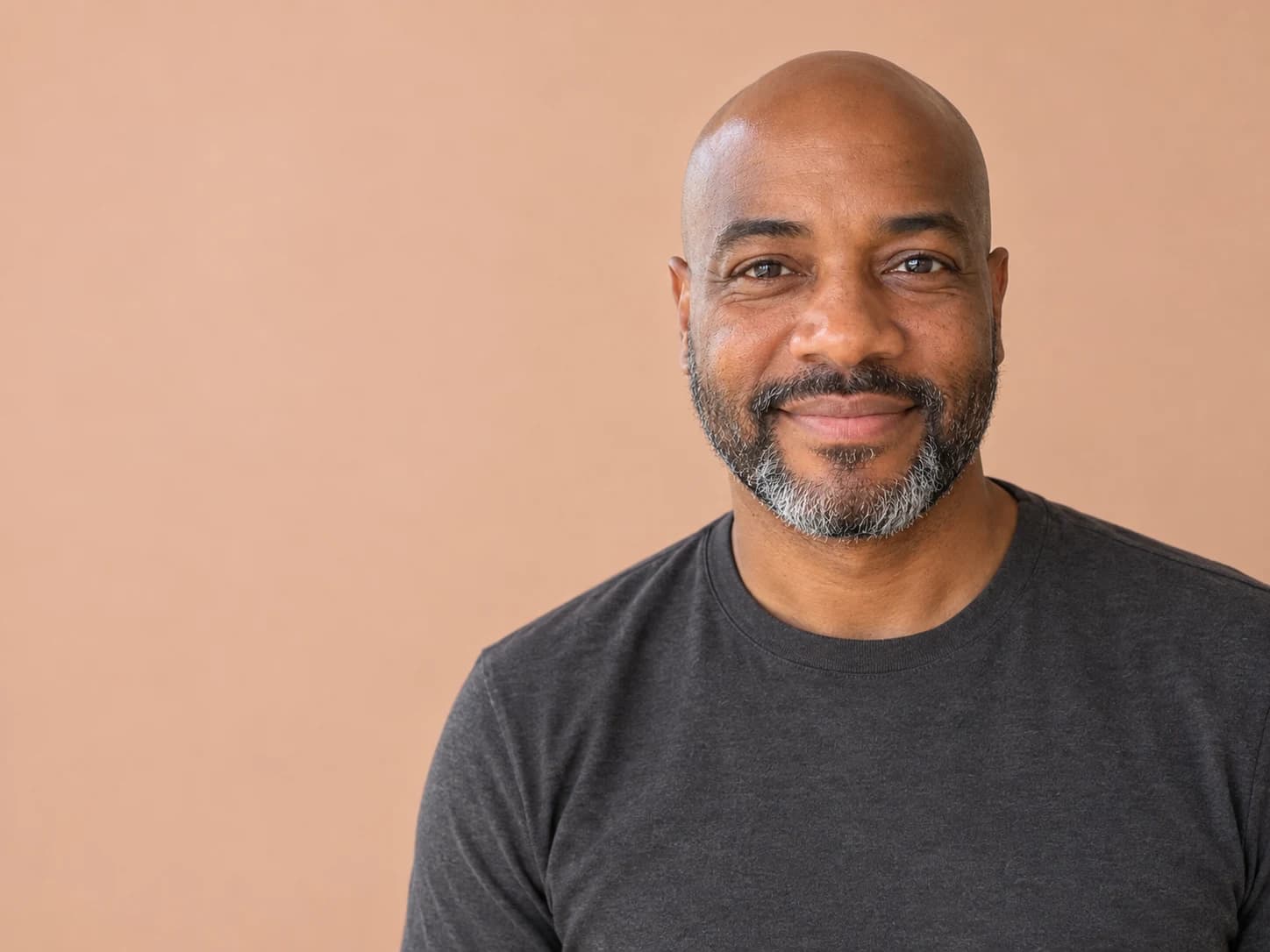
Create a natural 4:3 professional studio portrait using one identity reference of one fictional adult man. Dress him in a plain charcoal long-sleeve crew-neck shirt. Place his head and upper torso on the viewer-right, with his entire head and both shoulders clearly visible, facing the camera with a gentle natural smile. Leave a broad uninterrupted muted-apricot wall on the viewer-left. Use soft even daylight and realistic skin texture. Keep hands outside the frame. Include no props, furniture, signs, letters, text, logos, jewelry, or watermark.
Both images are AI generated and show a fictional adult. This is an illustrative example, not a customer result; outcomes vary.
FAQ
Must negative space be white?
No. Negative space can be a muted wall, open sky, or another low-detail area. What matters is that it stays quieter than the subject and does not compete with the face.
How do I say which side should stay quiet?
Name the side from the viewer’s perspective, such as “place the person on viewer-right and leave the quiet area on viewer-left.” Add what must remain visible and what should be excluded.
Can I add text later in another layout tool?
Yes. Leave the area visually uninterrupted, then test the real headline placement in a separate editor without covering the face or shoulders. This workflow does not add text inside PhotosLux.