White Products on Pale Backgrounds: Make the Outline and Base Readable
PhotosLux ·
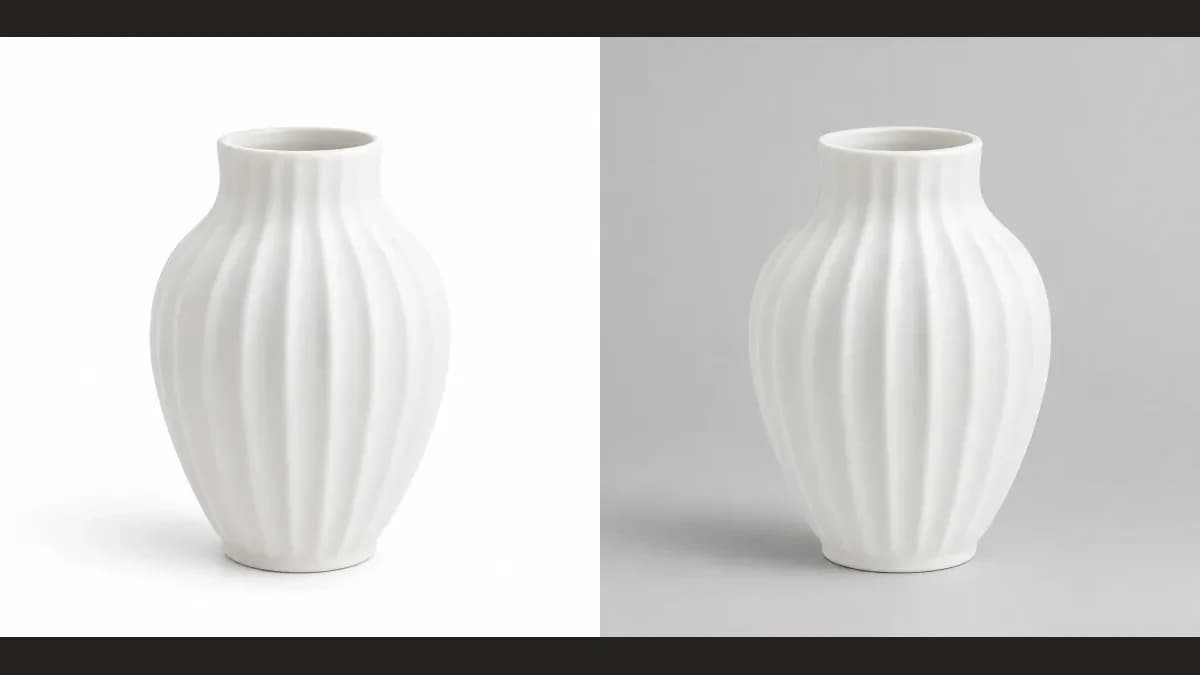
When white-on-white product photography makes an item disappear, keep the product white and shift the surrounding background toward pale neutral gray. Add a soft contact shadow directly beneath the base to connect the object to the surface without drawing a dark outline.
Start with a complete pale-gray studio setup
Try this appearance direction for one matte-white fluted vase: place it upright on a plain, matte, pale neutral-gray surface that curves into a matching seamless background. Use soft, neutral-looking light to reveal the vase’s ribs without adding a colored cast. Keep the vase white, make its outline readable against the gray, and add a soft contact shadow directly beneath its base. Leave out props, lettering and decorative outlines.
The object and its surroundings have different jobs. The vase should read as white; the backdrop supplies enough tonal separation to show the rim, body and foot. This is one adaptable setup, not a universal studio recipe or a promise of calibrated color.
If the edge disappears, adjust the background
Imagine the vase’s white rim and fluted body fading into a nearly white backdrop. Make the surrounding tone a little darker, toward pale neutral gray, while leaving the vase white. The rim and body can then separate from the background without suggesting that the product itself is gray.
Avoid solving the disappearing edge with a black border around the silhouette. A drawn outline changes the product’s appearance and can make it look cut out. The goal is a readable boundary created by the difference between the white object and its pale-gray setting.
If the base floats, add a soft contact shadow
Now imagine the vase has a clear outline but seems to hover above an empty plane. Ask for a soft contact shadow right under the low foot, where the base meets the surface. That small area of shade visually connects the vase to the tabletop while keeping the rest of the scene gentle.
A hard black shape beneath the vase can look like a graphic mark rather than a natural shadow. Do not add a fabricated pedestal to solve the same problem; the requested shadow should sit directly beneath the base.
Use this filled studio note
Subject: one matte-white fluted ceramic vase, with a narrow round neck, visible open oval mouth, complete ribbed body and low circular foot. Background and surface: plain, matte, pale neutral gray with a seamless look. Light: soft and neutral in appearance, revealing the flutes. Grounding: soft contact shadow directly beneath the base. Exclude props, text and logos.
Before using any image tool, this note can guide a discussion or a photo setup. Check the whole mouth, body and base, and judge the apparent whiteness of the vase against its source. These are useful brief details, not separate controls or a calibrated color specification.
Try one Product Photo scene, then inspect it
In PhotosLux, choose Product Photo. The optional Scene and background gallery is available, but this example uses no preset because the pale-gray seamless scene is a custom direction. Upload one JPEG, PNG or WebP image up to 20 MB. In the “Background and scene” request field, enter: “Keep the vase white. Use a pale-gray matte background and surface, soft light and a soft shadow at its base. No props.”
The separate optional “Custom instructions” field can say: “Keep the complete vase, open mouth, flutes, low base, view and matte-white appearance. No recoloring, outlines, new objects, text or logos.” Click “Show me the result” to request the transformation. These instructions guide the result; they do not guarantee exact color or preservation. No second reference is used here.
Framing is automatic. Inspect the actual full result for the rim, mouth, ribs, body and base, as well as the shadow directly beneath it. If the vase turns gray, its shape changes, or a required edge disappears, set that result aside. A generated overview cannot establish the real product’s material, exact color, dimensions or included parts; use genuine product images when those facts matter.
Illustrative example
Illustrative example: a white vase on a pale-gray scene
The synthetic input shows one unbranded matte-white ceramic vase standing on a white matte surface against a plain white background. Its rounded fluted body, narrow neck, open oval mouth and low foot are fully visible. Product Photo requests a pale-gray matte background and surface, soft light and a soft shadow at the base. The preferences ask to keep the complete vase and its white appearance. Inspect the actual result; both images are AI generated, not product evidence, and outcomes vary.
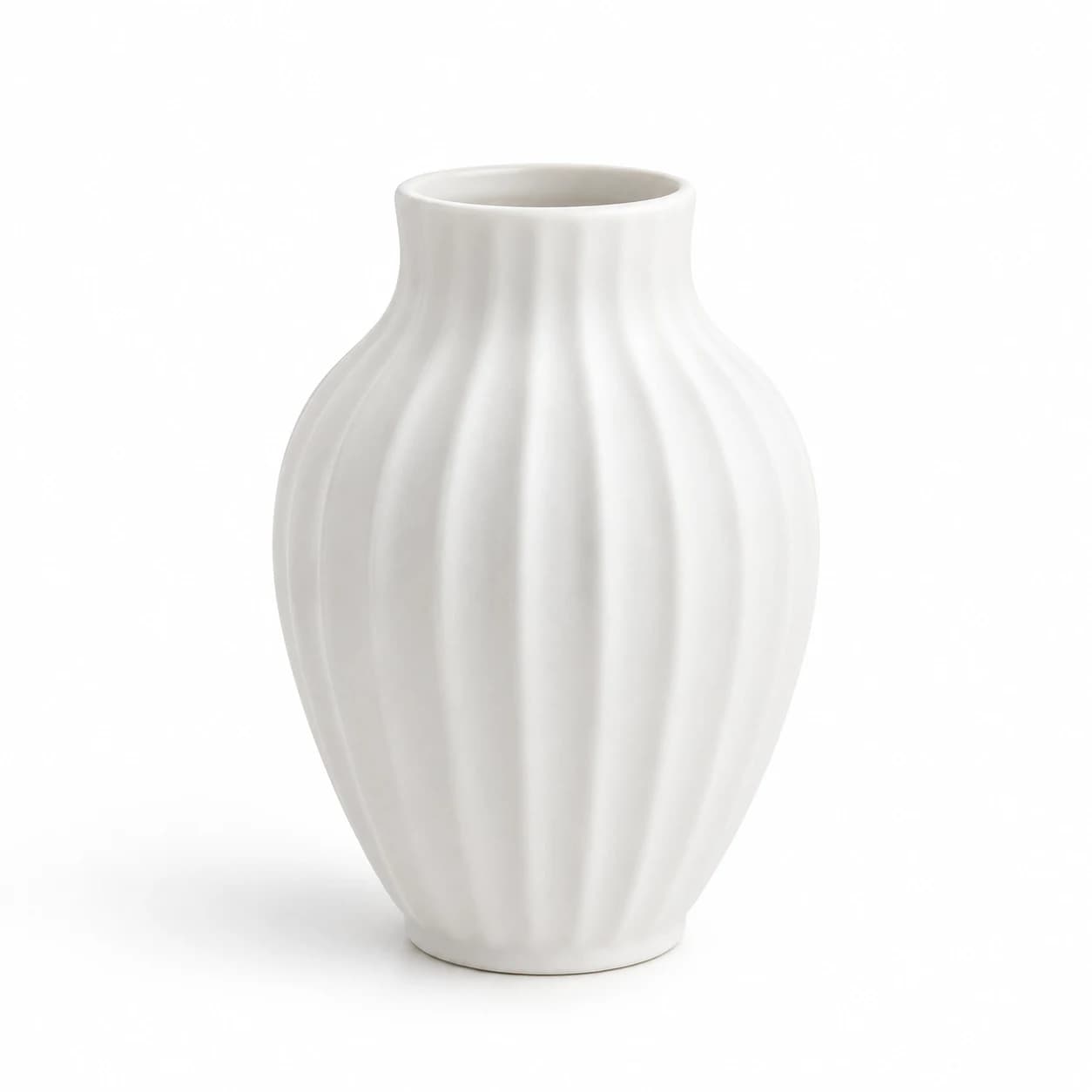
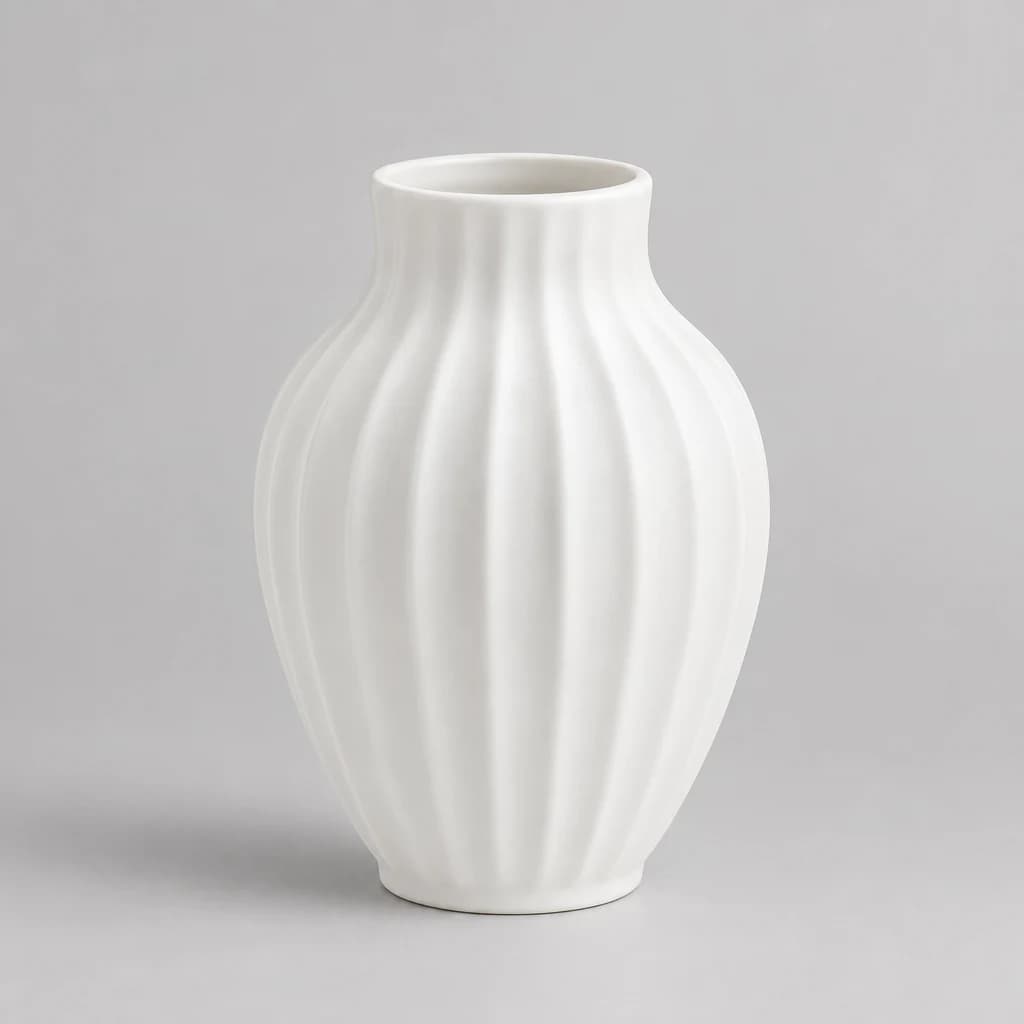
Keep the vase white. Use a pale-gray matte background and surface, soft light and a soft shadow at its base. No props.
Both images are AI generated and show the fictional vase and setting described in this example. This is an illustrative example, not a customer result; outcomes vary.
FAQ
Why does a white product lose its outline on a pale background?
When the product and background are too similar in tone, their boundary is hard to distinguish. Shift the surrounding tone toward pale neutral gray while keeping the product white.
How does a contact shadow ground the base without an outline?
A soft shadow directly beneath the base suggests where the object meets the surface. It connects the product to the scene without drawing a border around its silhouette.
What if the result makes the product gray or changes its shape?
Treat the request as guidance, not a guarantee. Inspect the generated image against the source and set it aside if the apparent product color, required edges or shape are not suitable.